Tonic desktop notifications
Tonic is a desktop notifier for staff. Once it is paired with your Tickiti account, your ticket notifications appear on your computer instead of arriving by email.
Pairing Tonic with your account
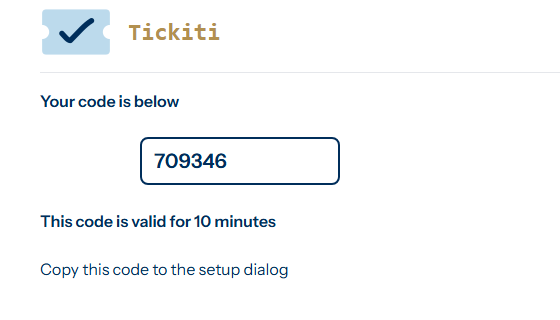
- Start pairing from Tonic’s setup dialog. It takes you to a page on your Tickiti site; sign in with your staff account if you are asked to.
- The page shows a six-digit code. The code is valid for 10 minutes.
- Type the code into Tonic’s setup dialog.
Tonic is now paired with your account. The pairing lets Tonic collect your notifications and nothing else, and it lasts 180 days; after that, pair Tonic again. Each code works once. Only staff accounts can pair Tonic.
You can pair Tonic on more than one computer. Each one shows every notification while it is running. Tickiti keeps each notification for Tonic for at least ten minutes, so a computer that was switched off for longer does not show what arrived meanwhile; For my attention still lists the tickets that need you.
Turning Tonic notifications on
An administrator ticks Tonic notifications on your account in User admin. From then on, the ticket notifications that would have been emailed to you go to Tonic instead, and you get no email for them. Pair Tonic before the box is ticked, or you will not see those notifications at all.
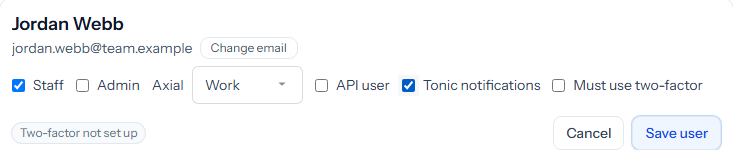
The box takes effect when the administrator clicks Save user.
A few notices are emailed as well as shown in Tonic: an escalation whose action is Email, a mailbox error alert that repeats, and the notice that an automation you created has been switched off after repeated failures. WhatsApp notifications are sent as usual, alongside Tonic.
What Tonic shows
Each notification has the ticket’s number and subject, a short preview of the latest message or note and a link that opens a preview of the ticket.