The Axial panel
Every ticket has an Axial panel. It holds Axial’s suggested responses, your conversation with Axial about the ticket, and the cards where Axial waits for a person. For what Axial is and who sees it, see Axial for staff.
Opening and hiding it
- Click the Axial button in the ticket’s top bar, or press Alt+A wherever you are on the page. The panel’s minimise button, or Alt+A again, hides it. What you have typed in it stays there.
- On a phone, use the Axial bar at the top of the right-hand panel.
- An amber dot on the button marks Axial content you have not seen yet. The panel opens by itself when something in it is waiting for staff.
The panel’s header says whether the ticket is Waiting on us or Waiting on the customer, and who answered last.
Asking Axial
Type in the box at the bottom of the panel and press Enter or click Ask Axial; Shift+Enter starts a new line. Axial answers in the panel. Its answers are for you and are never sent to the customer.
- Ask about the ticket, ask for a suggested response, or ask for a change to the latest one: shorter, offer a replacement instead.
- Whatever is in your reply editor goes with your message, so you can ask Axial to rephrase your own draft. Its version comes with Put in editor. If the editor already has something in it, Tickiti asks first: Replace it or Keep editing.
- If you send a message while Axial is still working, it waits its turn, and Take back withdraws it.
With View access to Axial you can read the panel, but it has no box to ask in.
While Axial works, a line shows what it is doing and for how long. Once it has finished, its working (the skill it chose and each lookup) folds into one line that you can open.
Choosing a skill
Axial chooses the skill that fits the customer’s message. To choose one yourself, type / at the start of the box and pick from the list; typing after the slash narrows it.
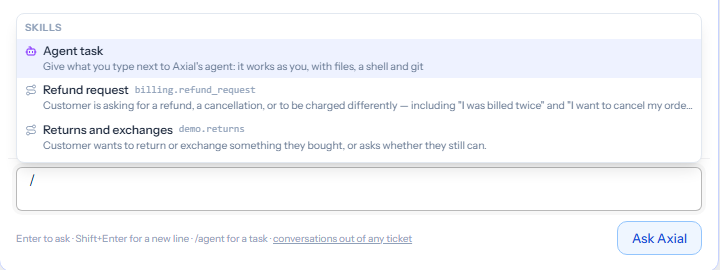
The skills in use appear above the box. The starred one is the primary skill, which decides the form of the reply; click another to make it primary, or click its × to stop using it. Where your installation has an Axial agent, Agent task (or a message starting /agent) gives the request to the agent, which works as you.
Suggested responses
Each suggestion appears in the conversation as Suggested response v1, v2 and so on. The latest is open and marked latest; an older one is marked replaced and folds to one line. Its badges tell you about it at a glance:
- A percentage: how confident Axial is in this version. Green from 85%, amber from 65%, red below. The line above the response text says what the figure is based on.
- needs a person: someone at your end must act on this reply. The reason is shown at the top of the response.
- sent or sent with changes: what became of the version.
- auto-sent, would auto-send or not auto-sent: shown when your administrator has replies sent without review, or recorded only. The response says why.
- checked or check suggests with a number of changes: what a final check of the reply changed, or would change.
Above a suggestion, Analysis for staff holds what Axial worked out (the evidence and the likely causes). It is never sent. Below it, Stock responses used links to each stock response the reply was built from, and What changed from v1 compares a version with the one before.
When the customer writes in another language, the suggestion is in their language, with the English beside it marked for you, not sent.
Using a suggestion
Click Open in composer. The suggestion goes into the reply editor, ready for you to change. If no message type is chosen yet and the ticket has an external participant, Tickiti sets it to Public. If the editor already has something in it, choose Discard it and insert or Keep editing. Then send it as usual; Tickiti may ask you to rate the suggestion first.
Cards that wait for you
- Questions. Axial needs an answer before it can finish this reply: choose an answer, add anything else Axial should know, and click Create a draft with my answer. I’ll handle this leaves the reply to you.
- Approvals. Axial stops before it changes anything that needs a person’s approval, and says what it wants to do; open the details under it to see exactly what it will send or change. Approve with the card’s button, or click Decline. A card for something the customer would receive shows the message as they would see it: nothing is sent until you approve it. If the action needs a right your account does not have, the card says so.
- Skill changes. Administrators with Manage access to Axial (system administrators, on a self-hosted installation) see the changes Axial drafts to a skill, with Apply skill change and Discard. Nothing changes until someone applies one.
- Shared notes. See Shared notes.
After a reply has gone
Once a reply has been sent and the customer has not written since, Axial’s work on that message folds into one line, and the panel shows Replied … nothing waiting from the customer. Respond again asks Axial for a further reply to the customer’s last message.
On a long ticket, Axial summarises the older conversation for itself. The panel marks this with Older history summarised for Axial; the turns themselves stay in the panel.
When someone else is using Axial
One person works with Axial on a ticket at a time. While a colleague is using it, or Axial is working on the ticket by itself, a banner says so (for example Jordan Webb is working on this ticket with Axial) and the box waits. A person’s hold ends when they leave the ticket or stop for three minutes. Administrators, and staff with Manage access to Axial, can click Take over; anything the other person has not sent stays in their box.
Cards stay open to everyone with Work access while someone else holds the box: they are answers Axial is waiting for.