Branding
Branding sets the logos and names your customers see: on the support form, on the sign-in pages, on their ticket pages and in the emails Tickiti sends them. It is at Administration → Branding, for administrators.
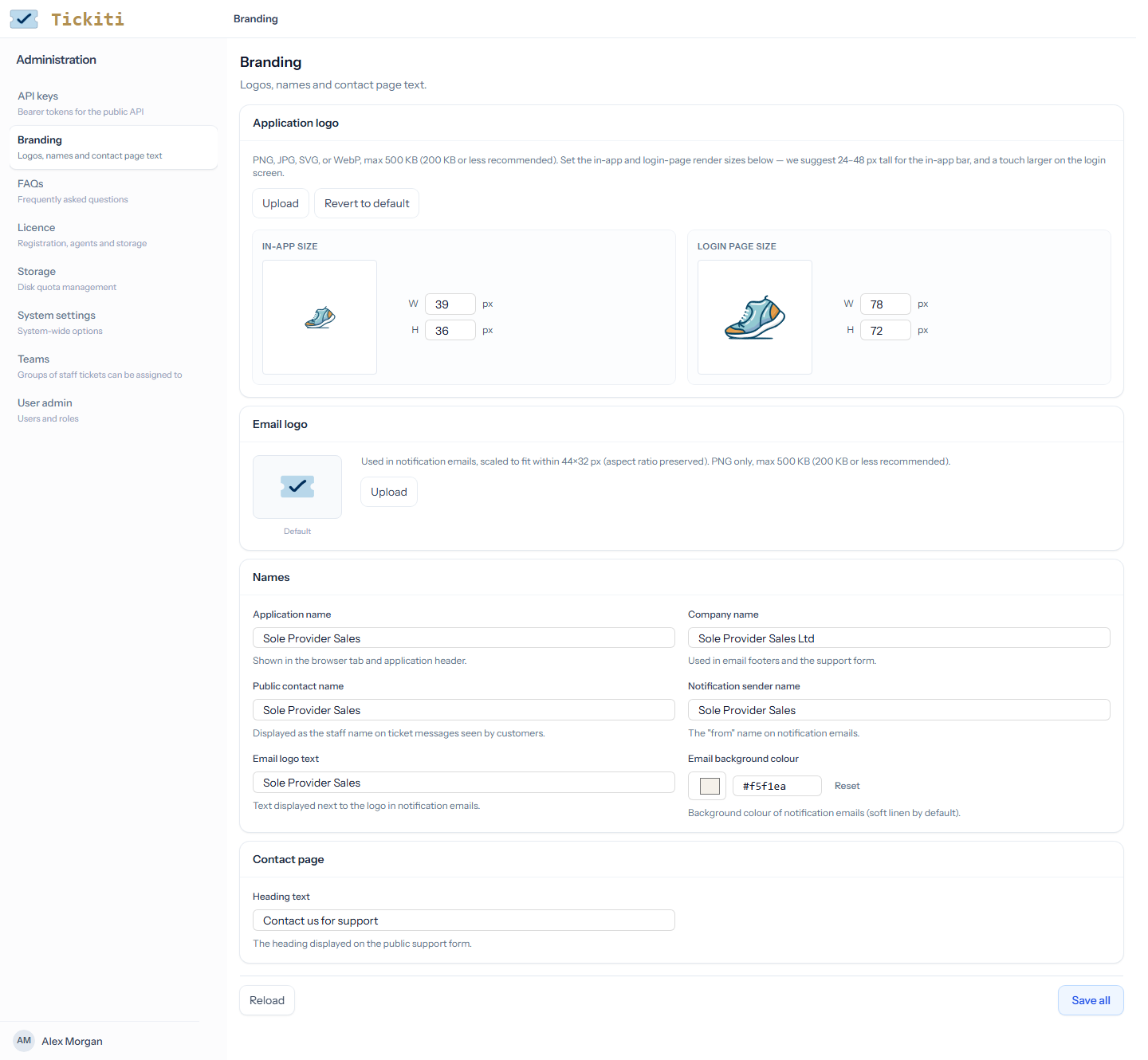
Each change saves as you make it; the indicator at the top right says Saving… and then Saved. Save all saves the whole form again, and Reload reads it back from the server.
Application logo
The logo shown with your application name on the pages customers see. Click Upload to choose a PNG, JPG, SVG or WebP file of up to 500 KB. The logo is shown at two sizes, each with its own preview:
- In-app size — the header of the support form and the customer’s ticket pages. Between 24 and 48 pixels tall suits most logos.
- Login page size — the sign-in, sign-up and password pages, where the logo stands above the form and can be a little larger.
Width and height are each between 1 and 128 pixels. A new upload sets the in-app size from the image itself, scaled down to fit 128 pixels if it is larger; adjust either size afterwards. Revert to default goes back to the Tickiti logo. Staff pages always show the Tickiti logo.
Email logo
The logo at the top of the emails Tickiti sends. It must be a PNG of up to 500 KB, and is scaled to fit within 44×32 pixels, keeping its proportions. Revert to default appears once you have uploaded one.
Names
- Application name — the name shown beside your logo on the pages customers see.
- Company name — your organisation’s name, shown in the copyright line at the foot of each email.
- Public contact name — the name customers see on staff messages in place of the person who wrote them, such as Sole Provider Sales. Staff still see who wrote each message. Signatures can include it with
{{public_contact_name}}. - Notification sender name — the From name on account emails, such as email address verification and password reset. Ticket emails go out with the From name of the queue’s mailbox (see Mailbox setup).
- Email logo text — the text beside the email logo.
- Email background colour — the colour around the message in each email. Pick a colour or type a hex value; Reset returns to the default,
#f5f1ea.
Contact page
Heading text is the heading of your public support form. Left at the default, Contact us for support, it is shown in the visitor’s language; your own heading is shown as you wrote it. See FAQs for the questions listed beside the form, and Raise a support ticket for the form as a customer sees it.
Related
- Custom domain setup — serve Tickiti from your own web address.
- System settings — the format of customer notification emails and signatures.