Reminders
A reminder brings a ticket or task back to someone’s attention at a time you choose — once, or on a repeating schedule such as every Monday morning. Reminders are most useful on tasks, but you can set them on any ticket.
Setting a reminder
Open the ticket and click the bell in the ticket header, next to the edit and link buttons. A small number on the bell shows how many reminders are already set. The Reminders dialog lists the existing reminders under Set, and has a form for adding one:
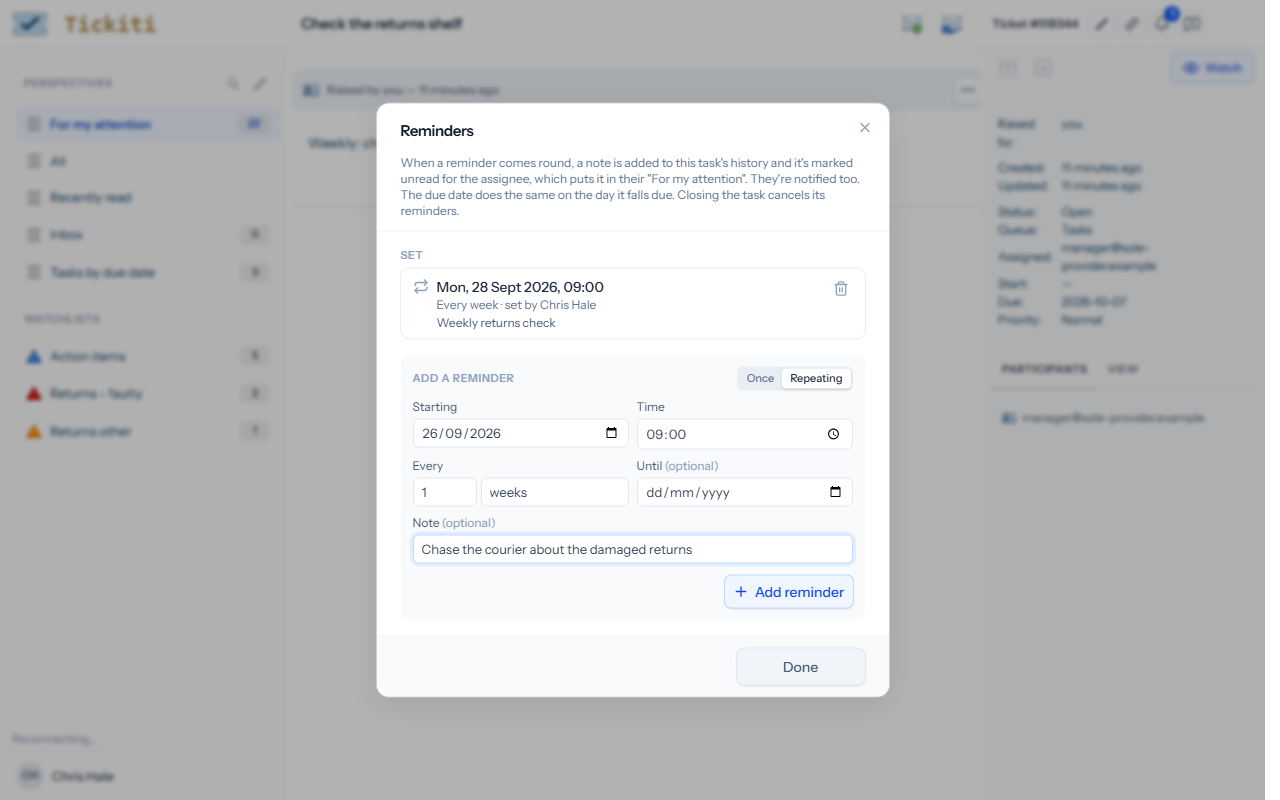
- Choose Once or Repeating.
- Pick the date and time. For a repeating reminder this is the first time it goes off; then choose how often it repeats (every so many days, weeks or months) and, optionally, the date it stops.
- Add a note if you like — it appears with the reminder, so whoever gets it knows why.
- Click Add reminder, then Done.
Times are in your own time zone, and a repeating reminder keeps to the same local time across changes to and from summer time. To remove a reminder, click the bin next to it.
When a reminder goes off
- A Reminder entry, with your note, is added to the ticket’s history.
- The entry is unread for the assignee only — or for you, if the ticket is unassigned — so the ticket appears in their For my attention (and a task shows a bell in lists). If they are not already on the ticket, they are added as a temporary participant.
- They are notified by email or push notification, as their profile says.
- The ticket’s status is left alone.
A repeating reminder then moves on to its next time; a one-off reminder is finished. Tickiti checks for reminders every minute, and if one cannot be delivered it is tried again on the next check.
Closing cancels reminders
Closing a ticket or task removes all its reminders, so nobody is reminded about finished work. If you reopen it, set new reminders as needed.
Due dates
A task’s due date works in the same way without any setting up: on the day, if the task is still open, a Came due today entry is added and the assignee is notified. See Tasks.