Automations
Automations act on tickets as things happen, so nobody has to remember to. Administrators manage them at Workflow → Automations.
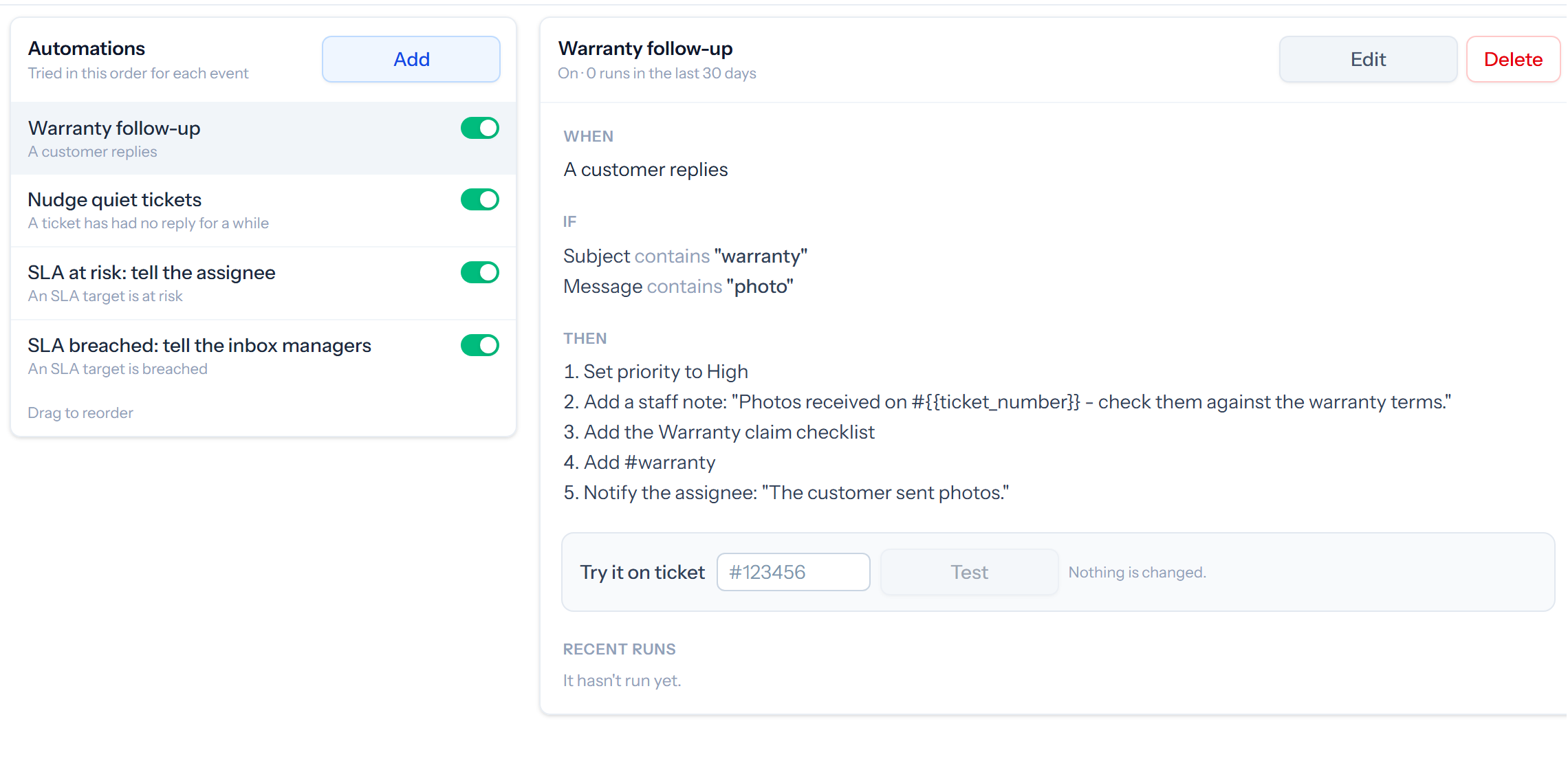
Each automation has three parts: When something happens, If these conditions hold, Then do these things in order.
When
- A ticket is created or closed
- A customer replies, staff reply to the customer, or a staff note is added
- The status, queue, assignee or priority changes
- A ticket has had no reply for a while
- A task comes due
- An SLA target is at risk or breached
- A customer rates their support
For a ticket with no reply, you set how long, whose turn it is, and whether only business hours count.
If
Conditions can test the queue, status, priority, assignee, type, subject, sender, hashtags and whether it is during business hours. Depending on the event you can also test the message, how it arrived, what a field changed to, which SLA target is affected, or the rating. With no conditions, the automation runs every time.
Conditions on different fields must all match. Several values for one field match any of them.
Then
An automation can set the status, move the queue, assign, set the priority, set a task’s due date, add a staff participant, add a hashtag, add to a shared watchlist, add a checklist, add a staff note, reply to the customer with a stock response, or notify someone.
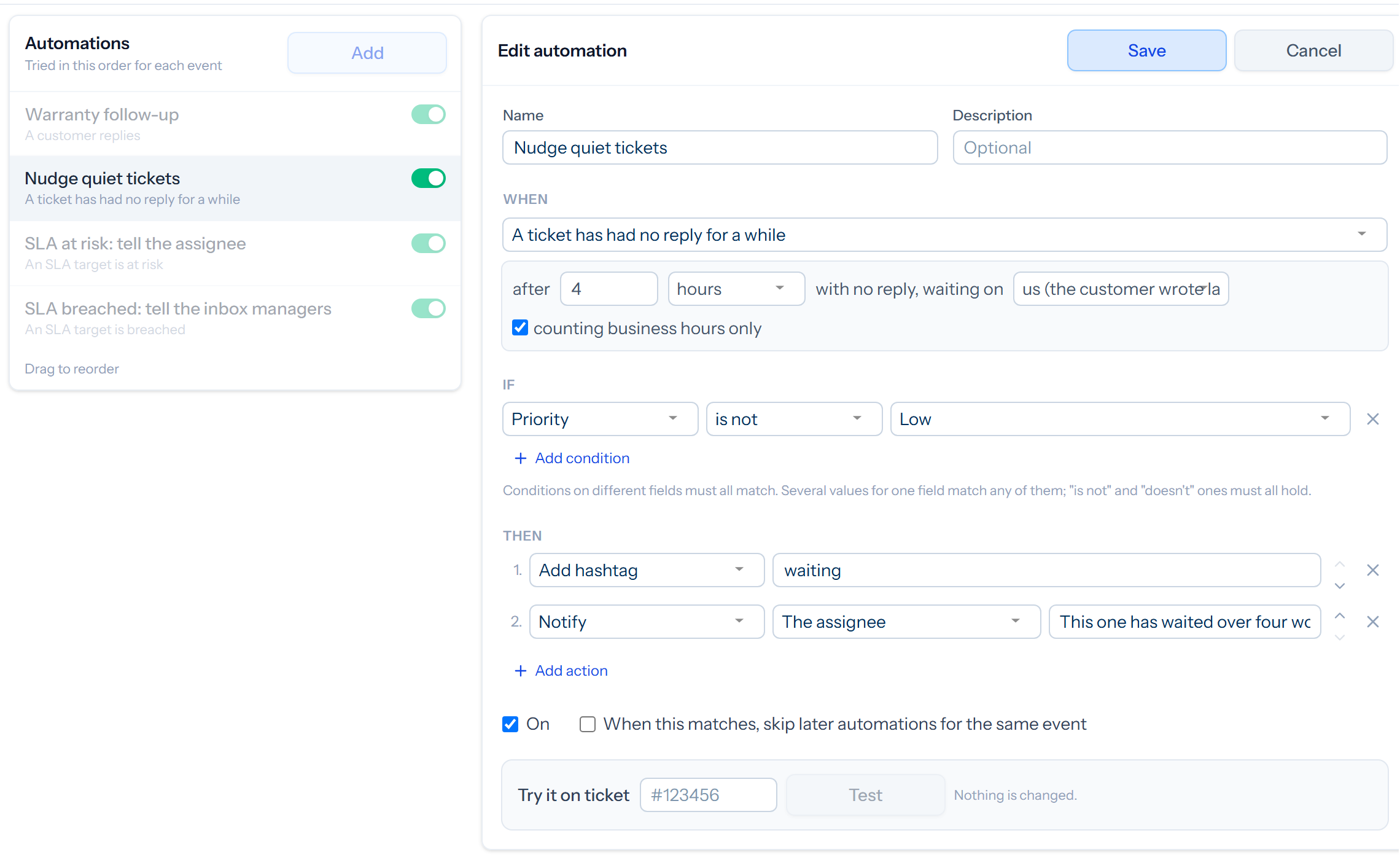
The order in the list on the left is the order automations are tried for each event. Drag them to change it. Tick When this matches, skip later automations for the same event to stop there.
Trying one out
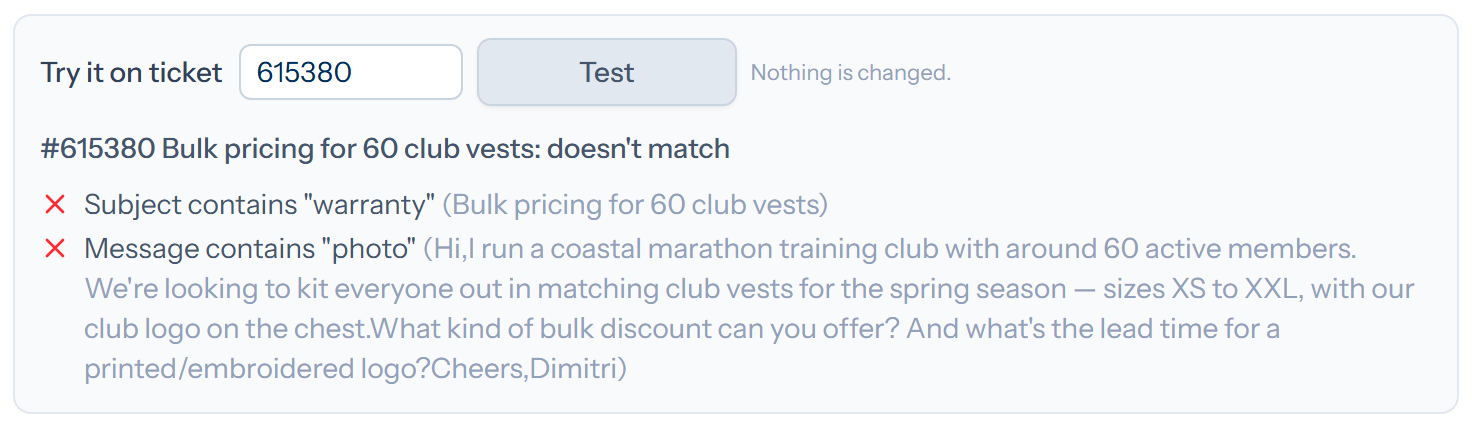
Enter a ticket number under Try it on ticket and click Test. Tickiti shows which conditions match and what the automation would do. Nothing is changed.
Keeping track
Changes made by an automation are recorded in the ticket’s history under the automation’s name. Recent runs lists what it has done in the last 30 days.
An automation’s own changes do not set off further automations. One that fails five times in a row is switched off and its creator is told.