Tasks
Not everything the team does starts with a customer. Tasks let you track internal work — reconciling invoices, restocking, preparing a product launch — in the same place as your tickets, with start and due dates, reminders and a to-do list that sorts itself by what is due next.
What makes something a task
A task is simply an item in a queue that holds tasks. An administrator decides which queues do (see Queue configuration); many teams have a single Tasks queue. To create a task, raise a new ticket in that queue, or move an existing ticket into it. Move it back to a ticket queue and it becomes a ticket again.
Start and due dates
A task has an optional start date and due date, in the editing panel alongside status, queue, assignee and priority. Like the other fields they take effect when you send or save, and the change is recorded in the task’s history. The queue’s managers and the task’s assignee can change them; Clear removes a date.
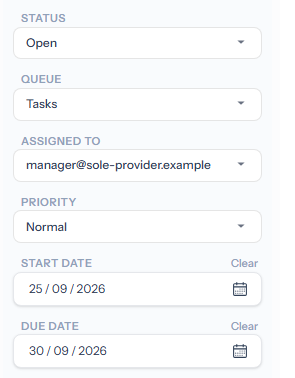
On the due date, if the task is still open, Tickiti adds a Came due today entry to its history. The entry is unread for the assignee alone, so the task moves into their For my attention, and they are notified the way their profile says. The task’s status is not changed.
Replies on a task
Tasks are for the team, so every reply on a task is a Staff note and only staff are notified. There is no signature, and the quick actions that only make sense with a customer are not offered. You can still put a task on hold until a date, just as with a ticket.
Customers on a task
If a ticket with customers on it becomes a task — you moved a customer’s request into the task queue as a piece of follow-up work, say — the customers sit out while it is a task. They are hidden from the participant list, are never notified, and cannot open it, whether from an email link, by signing in, or from an attachment link. Nothing is deleted: move the item back into a ticket queue and they are back on it, just as before.
If one of them emails in about it meanwhile, their message opens a new ticket for someone to review rather than landing on the task. Out-of-office auto-replies are never sent on tasks either.
Keeping track
A perspective with a Type is Task condition lists your tasks, and can be sorted by start or due date (see Managing perspectives). A bell in front of a task means it has come due, or a reminder has gone off, and you have not opened it since:

Opening the task clears the bell. Closing a task cancels any reminders on it.