SLA policies
SLA policies set how quickly tickets should be answered and resolved. Administrators manage them at Workflow → SLA policies. To see how targets appear to staff, read SLA targets on tickets.
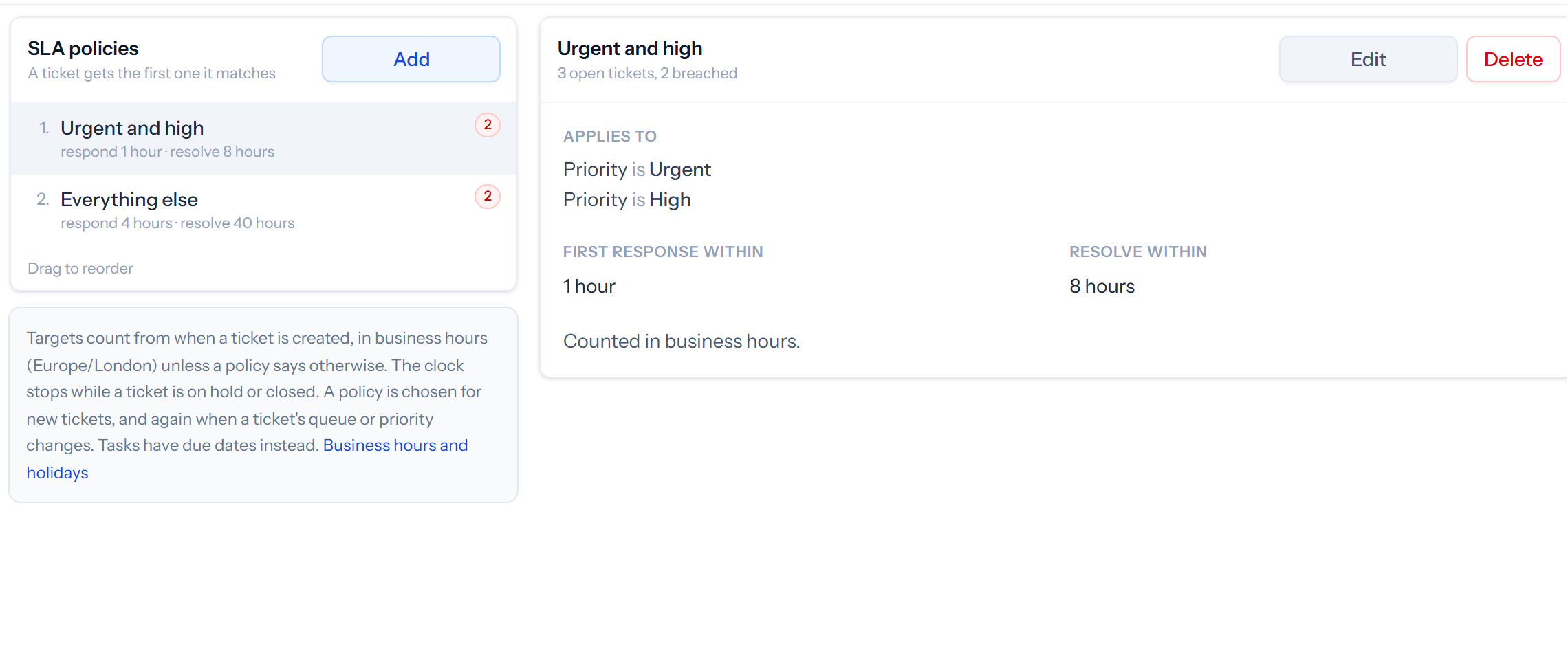
Setting up a policy
- Click Add and give the policy a name.
- Under Applies to tickets where, add conditions on the queue, priority, assignee, subject, sender or hashtag. A policy with no conditions catches every ticket not caught by one above it.
- Set First response within and Resolve within. Leave either empty for no target of that kind.
- Choose whether to Count business hours only, and click Save.
A ticket gets the first policy it matches, so drag the most specific policies to the top. In business hours, a “day” is one working day’s worth of hours. See Business hours and holidays.
How the clock runs
- Targets count from when the ticket is created.
- The clock stops while a ticket is on hold or closed.
- A policy is chosen for new tickets, and again when a ticket’s queue or priority changes.
- A target is at risk once 75% of its time has gone.
Changes to a policy apply to tickets that get the policy from then on.
Acting on a target
Use automations to tell someone when a target is at risk or breached. See how you are doing in SLA and satisfaction reports.