AI assistant — admin guide
The AI assistant drafts suggested replies to customer tickets. Agents see a suggestion in the reply editor, review and edit it, and send it themselves — the AI assistant staff guide covers that day-to-day experience. With the right settings it can also draft replies automatically as tickets arrive, and — once you choose to enable it — send high-confidence replies to simple questions on its own. This guide covers the settings an administrator controls.
Where to find it
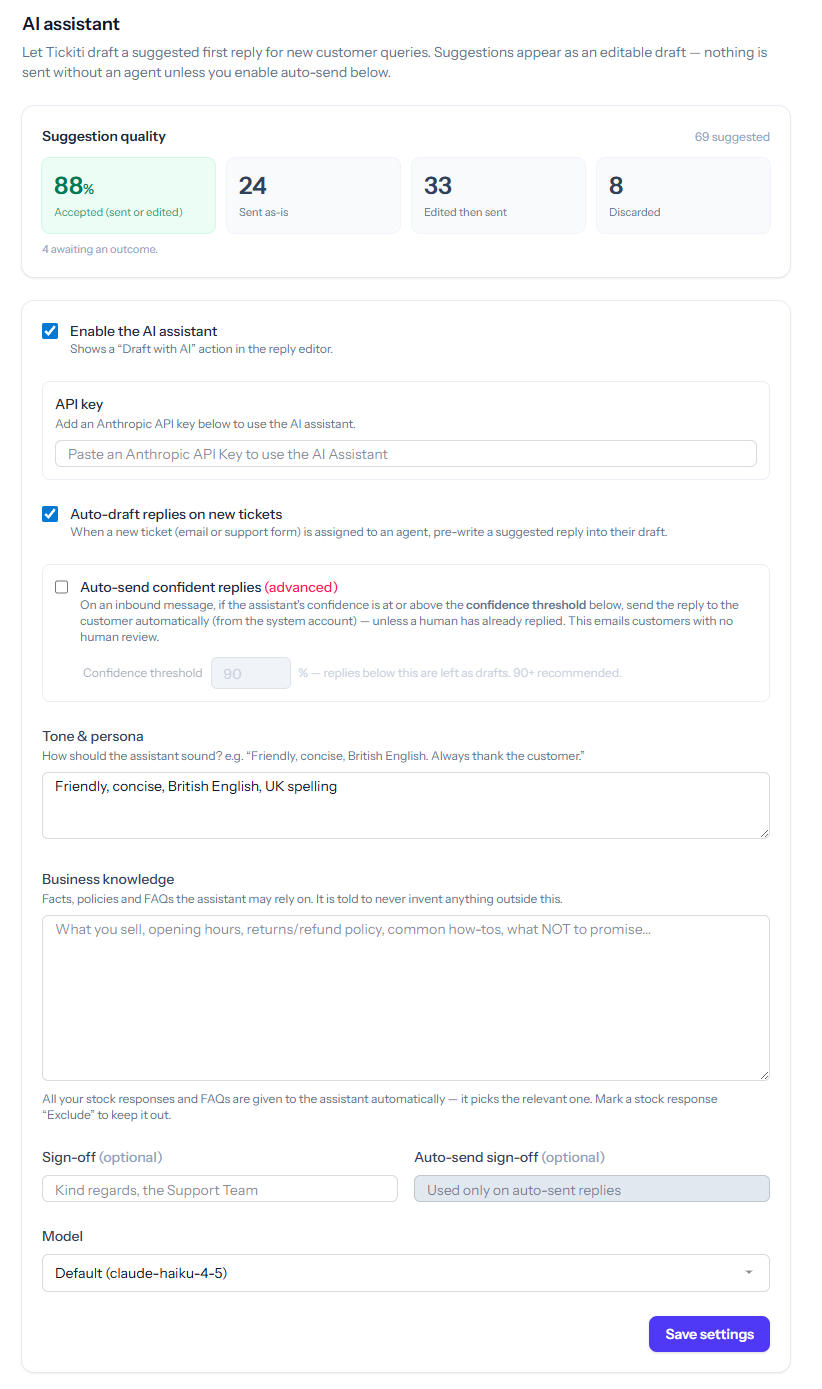
Open Administration → AI assistant. The page is available to system administrators. All settings here apply to your workspace. The AI assistant requires the Professional plan or higher — on the Lite plan the menu entry appears but prompts you to upgrade, and the assistant does not run.
API key
The assistant uses an Anthropic API key. The page shows which key is in effect:
- On a trial — a trial plan key is provided for you, subject to fair-use limits, so you can try the assistant straight away. Leave the key field blank.
- On a paid plan — add your own Anthropic API key to run the assistant; usage is billed to your account. The key is stored encrypted and is never shown back to you. Leave the field blank when saving to keep the existing key, or tick Clear this tenant's key to remove it.
Turning the assistant on
Enable the AI assistant switches the feature on. With it enabled, agents get a Draft with AI button in the reply editor. Nothing is sent to a customer automatically unless you also enable auto-send (below).
Auto-draft on new tickets
When on, a suggested reply is prepared the moment a new customer ticket arrives (by email, the support page, or the API). Whichever agent opens the ticket is offered the suggestion in the editor — they can use it as a starting point or dismiss it. The suggestion is removed once any agent posts a reply.
Auto-send confident replies (advanced)
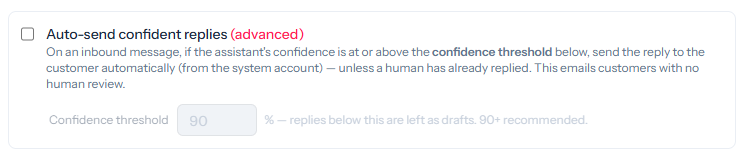
This is the only setting that sends a reply to a customer without a person reviewing it, so treat it with care. When on, an inbound message whose confidence is at or above the confidence threshold is answered automatically, from the system account.
- It only acts before a human has replied to the ticket. As soon as an agent responds, the assistant stops sending on that ticket and leaves the rest to your team.
- The confidence threshold (0–100) is the bar a reply must clear to be sent. 90 or above is a sensible starting point — the assistant reports lower confidence on anything it is unsure about or lacks information for, and those are left as drafts instead.
- The auto-send sign-off lets you sign machine-sent replies differently from agent replies if you wish.
Auto-send is off by default. We recommend running with auto-draft only for a while, watching the suggestion-quality figures, and enabling auto-send with a high threshold once you are confident in the results.
Approved-response confidence boost
When the assistant reproduces one of your Usable as-is stock responses or an FAQ word-for-word, it adds a fixed number of points to its reported confidence, capped at 100. Because the wording is your own approved answer, you can let it count as more confident than the assistant's cautious self-rating. This is always applied and shows in the confidence on every suggestion, so you can judge its effect before turning auto-send on.
The boost defaults to 20. With a boost of 20 and an auto-send threshold of 90, an approved match the assistant rates 70 or higher would clear the bar and be sent automatically. Set the boost to 0 to turn it off.
Shaping the replies
- Tone & persona — how the assistant should sound (for example: friendly, concise, British English, always thank the customer).
- Business knowledge — facts, policies and answers the assistant may rely on: what you sell, opening hours, returns and refund policy, common how-tos, and what it must not promise. The assistant is instructed to use only this and the conversation, and to ask the customer for missing detail rather than guess.
- Sign-off — the closing line added to suggested replies.
- Model — choose the model that drafts replies. The default is fast and economical and is suitable for most workspaces.
Writing the tone & persona
Keep this short and concrete — a few lines describing the assistant's voice, not a full style guide. Cover how warm or formal to be, the spelling and locale to use, how long replies should run, and any consistent habits (how to greet, whether to thank, what to do when unsure). Avoid contradictory instructions, and don't put facts here — those belong in business knowledge.
Examples you can adapt:
- “Friendly and concise. Write in British English. Greet the customer by first name, thank them for getting in touch, and keep replies to a few short paragraphs. If you are unsure, say so and ask rather than guess.”
- “Warm but professional; plain language, no jargon. Reassure the customer you will help, and always end with a clear next step. Never over-promise on timescales.”
- “Calm and precise for a technical audience. Get to the resolution quickly and use numbered steps for any instructions.”
Writing the business knowledge
This is the assistant's only source of facts about your business — it is told to rely on this and the conversation alone, and to ask the customer rather than invent anything. Put in what it needs to answer your common questions correctly, and be explicit about limits and anything it must never promise. Keep it factual and well organised — short headed sections are easier for the model to use than long prose — and review it whenever a policy changes.
Worth including:
- Products or plans — what you offer and the key differences between the options.
- Policies — returns, refunds, warranty, delivery, cancellations, with any time limits.
- Operations — opening hours, the response times you aim for, and how a ticket gets escalated.
- Common how-tos — short troubleshooting or setup steps for the questions you see most.
- Hard limits — what it must not do: promise refunds, discounts or delivery dates, give legal or financial advice, or share account or internal details. Tell it to say it will check and come back instead.
A short worked example:
Products: we sell the Aurora subscription in three tiers — Lite, Pro and Enterprise; Pro adds custom reports and API access. Returns & refunds: monthly plans can be cancelled any time and run to the end of the period; annual plans are refundable pro-rata within 30 days. Support hours: Mon–Fri, 9am–5pm UK; we aim to reply within one working day. Do not: promise refunds or discounts, commit to a delivery or fix date, or confirm a cancellation has gone through — say you will check with the team and follow up.
What the assistant knows about each ticket
For every draft the assistant is given the full customer conversation on the ticket, the queue it is in, the names of any attached files, your business knowledge, all of your stock responses and FAQs (see below), and the most relevant resolved tickets from your history. It cannot read the contents of attachments — only their filenames.
Stock responses and the assistant
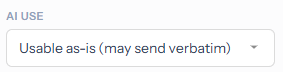
All of your enabled stock responses and FAQs are given to the assistant automatically, so it can recognise a question it has a standard answer for and use it. You control how each stock response may be used with its AI use setting, in the stock-response editor:
- Usable as-is — an approved, ready-to-send answer. When the assistant recognises that one of these fully answers the customer, it reproduces its exact wording. These are the responses that can be sent verbatim and are the best candidates for auto-send.
- Reference — guidance the assistant adapts to the specific customer rather than sending word-for-word. This is the default.
- Exclude — the assistant ignores the response entirely. Use this for internal notes, fragments, and template scaffolding that should never reach a customer.
The assistant also reads each stock response's keywords and uses them as cues for when that response applies. Adding the words and phrases customers actually use — for example unlock, transfer licence or new computer on a licence-reset response — helps the assistant pick the right approved answer even when the customer's wording differs from the response itself. Curating keywords is therefore worthwhile both for staff searching the stock-response library and for the assistant.
Although agents create and edit stock responses, the AI use setting is controlled by administrators only — it is read-only for other staff and defaults to Reference. This keeps the decision about which wording is approved for sending in administrators' hands.
Advice: mark a response Usable as-is only when it is complete, correct, and appropriate to send unchanged. Keep nuanced or situational answers as Reference. Set template scaffolding and internal-only responses to Exclude.
How the assistant learns from past tickets
Resolved (closed) tickets are indexed daily and used as precedents: when a new question resembles tickets your team has already answered, those answers inform the draft. Nothing extra is required — closing tickets keeps the precedent set current.
Suggestion quality
The Suggestion quality panel tracks what agents do with the assistant's suggestions — how many are sent as-is, edited then sent, or discarded — and an overall acceptance rate. Watch this to judge how well the assistant is performing for your workspace before relying on auto-send.
A recommended rollout
- Fill in tone, business knowledge and sign-off, and set a few of your best, complete stock responses to Usable as-is.
- Enable the assistant with auto-draft only. Let agents use the suggestions for a while.
- Watch the suggestion-quality acceptance rate.
- When you are happy with the results, enable auto-send with a high threshold so only the clearest, approved answers go out automatically.