Responding to tickets
Most of your day in Tickiti is responding to tickets. This article walks through writing a response and the difference between a public reply that the customer sees and an internal note that stays inside the team.
For a complete end-to-end walk-through of one ticket from open to send, see Your first ticket in the Getting Started section.
Opening the response composer
From an open ticket, click the Reply icon (the button next to the new-ticket envelope) in the ticket header. The composer opens above the conversation:
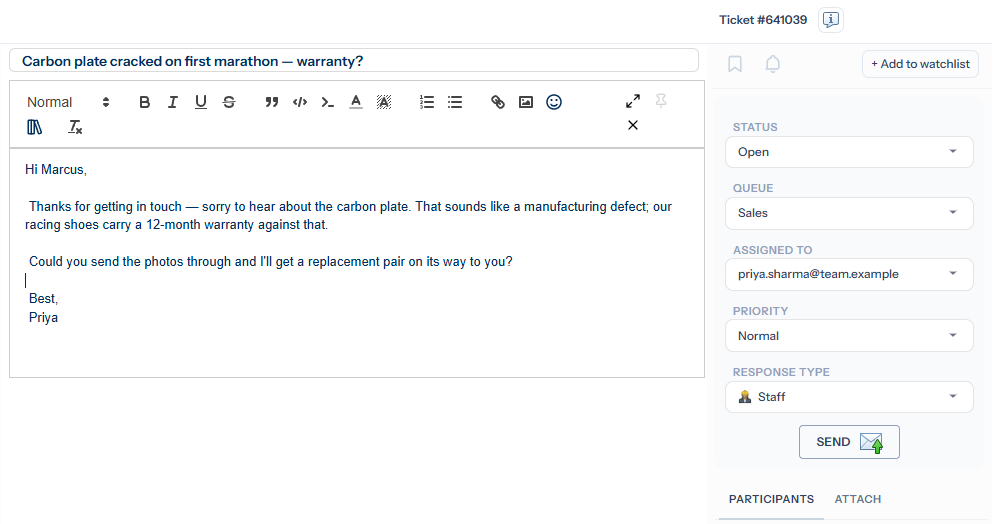
Writing
The composer is a rich-text editor. The toolbar covers headings, bold/italic/underline/strikethrough, blockquotes, code blocks, links, lists, colour, emoji, and stock-response insertion. Drag images into the body to inline them. To attach a file, open the Attach tab at the bottom of the side panel to reveal the dropzone, then drag files in or click to pick them.
Choosing a response type
Before sending, you must pick a response type. There are three; the two you will use most often are Public and Staff:
- Public — the message is visible to the customer (and any other public participants) on the ticket page; participants are notified.
- Staff — an internal note. Only your colleagues see it.
- External — a message visible to external participants; typically used when you wrap a ticket up.
Response types covers these in detail.
Signatures
When your organisation uses signatures, a slim Signature strip sits under the editor showing which signature your reply will carry. Click it to choose another:
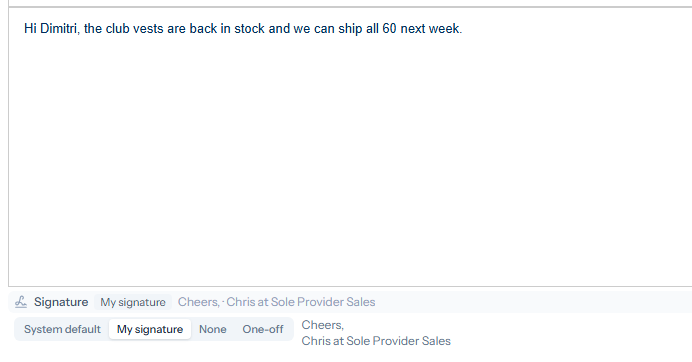
- System default — the organisation’s signature, set by an administrator in System settings.
- My signature — your own, set in your profile (offered when your organisation allows personal signatures).
- None — send this reply unsigned.
- One-off — type a signature for this reply only.
The signature is added when the reply is sent, and only to replies the customer sees (Public and External). Staff notes are never signed, and tasks, which only take staff replies, do not show the strip.
Sending
The post button below the side-panel fields reads Send when you have typed something in the body, or Save when the body is empty but you have changed an attribute (queue, assignee, priority, etc.) — the latter just persists the attribute change without sending anything. If something prevents sending — missing subject, missing response type, hashtags that need confirmation — the button shows the reason instead.
After sending, your reply is appended to the conversation, the ticket’s last-updated time refreshes, and any participants outside your team are notified. You manage that list from the Participants tab in the composer’s side panel — see Participants.
Send later
To have a reply go out at a later time — first thing tomorrow, say, rather than late in the evening — click the clock next to Send and pick a time. In an hour, Tomorrow morning and Monday morning are one click; for anything else, choose a date and time and click Schedule. Mornings are 09:00 in your own time zone. (The clock is offered when replying on an existing ticket, not when raising a new one.)
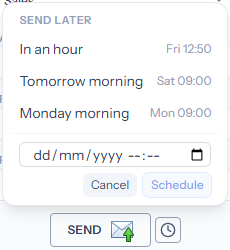
Send later works for every response type, internal staff notes included. A public reply still asks you to confirm, and the confirmation says when it will go:
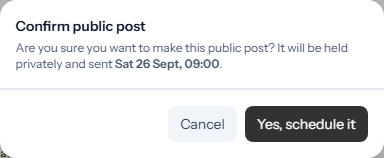
Until then the reply is held privately in your draft: nobody else can see it — customers or colleagues — and no one is notified. Any attribute changes you made with it (status, queue, assignee and so on) are held too, and applied when it is sent. The ticket shows a banner so you can see what is waiting:

- Send now — sends the reply straight away.
- Edit — reopens it in the editor. The schedule is paused while you edit, so it cannot go out half-changed. Close the editor with Save to keep your changes, or Cancel to go back to the reply as it was; either way the schedule resumes, and if its time passed while you were editing, the reply is sent there and then.
Discarding the draft cancels the scheduled reply. You can have one scheduled reply per ticket at a time.
If a scheduled reply can’t be sent
Occasionally a reply cannot go at its time — for instance because a colleague has the ticket locked while they edit it. The banner turns amber, says why, and Tickiti tries again every minute. If it still has not gone after a day, the banner turns red and the reply waits for you to edit it or send it yourself.
Cancelling
The × in the toolbar closes the composer. If you have unsent content, Tickiti asks whether to save it as a draft or discard it.