Search and filtering
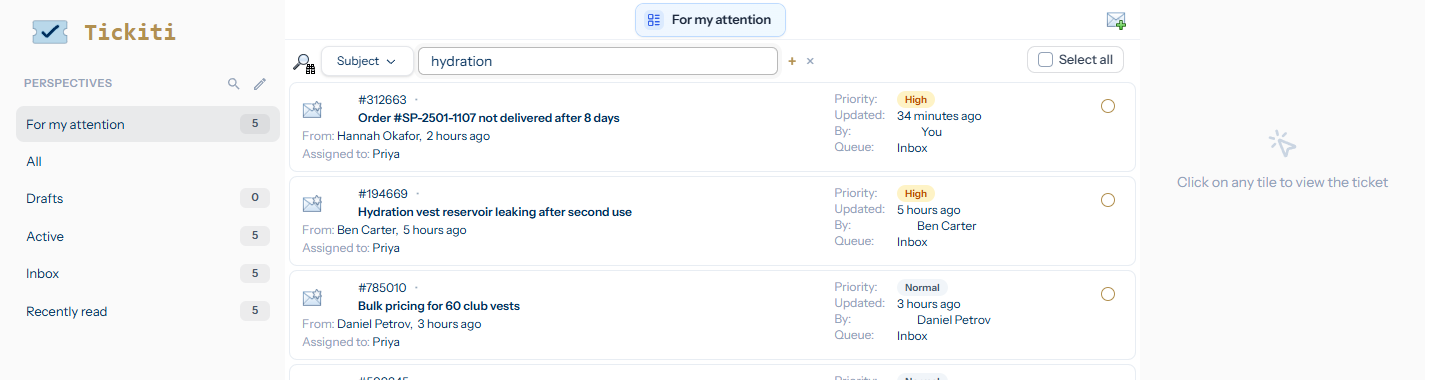
The search bar at the top of the ticket list filters by text (subject, content, hashtag) or by structured fields (assignee, queue, status, priority, watchlist) or by date range (when a ticket was created or last updated). By default the search runs across the Active set of tickets — every open ticket in the system — and you can broaden or narrow that set with the scope toggle. You can stack several filters together to narrow the result further or to express alternatives.
Picking a field
The dropdown to the left of the text box decides which field the search applies to. The full set of search modes is:
- Subject — the ticket subject line.
- Content — words inside any response on the ticket.
- Subject + content — matches either; the broad “does this word appear anywhere” search.
- Assigned — the staff member currently assigned. Pick from a list of staff users.
- Hashtag — tickets with a particular hashtag recorded against any response. The text box autocompletes existing hashtags from two characters in.
- Participant — anyone on the ticket (staff, customer, or external participant) by email.
- Priority — Low / Normal / High / Urgent.
- Queue — pick from a list of queues you have view permission on.
- Raised by — the originator’s email or name (the person who first opened the ticket).
- Status — Open / Closed / On hold.
- Ticket number — an exact ticket number.
- Watchlist — pick from your watchlists to filter to tickets in a particular one.
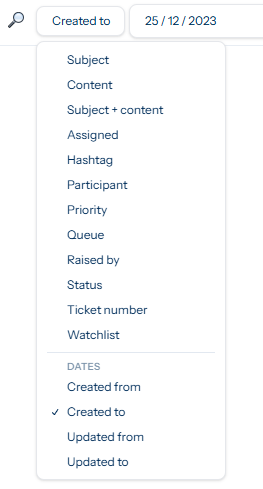
Below those, grouped under a Dates heading in the field menu, are four date-range modes. Each one shows a calendar picker for its value:
- Created from — tickets raised on or after the chosen date.
- Created to — tickets raised on or before the chosen date.
- Updated from — tickets whose last activity (the most recent response) is on or after the chosen date.
- Updated to — tickets whose last activity (the most recent response) is on or before the chosen date.
Pair Created from with Created to (or Updated from with Updated to) to bound a range; supply just one side to leave that end open — e.g. Created from on its own finds everything raised since that date. The chosen day is inclusive at both ends.
Jumping straight to a ticket
Typing # followed by a six-digit ticket number (e.g. #501379) is a shortcut: Tickiti recognises it as a ticket-number jump and searches across all tickets, regardless of which mode the field is in or which scope you have selected. Use this when a colleague pastes a ticket number to you and you just want to land on it. Selecting Ticket number mode and typing the digits without the # has the same effect.
Stacking filters
The + button to the right of the text box adds a second filter, then a third, and so on (up to five). The × button on a filter removes it; the row collapses and the list refreshes.
How stacked filters combine depends on whether they are the same field or different fields. The rule reads naturally if you put the word “or” between rows on the same field, and the word “and” between rows on different fields:
- Same field, multiple rows. Each row is an alternative; a ticket needs to match any one of them. So two Priority filters — Urgent and High — together mean “show tickets that are Urgent or High”. Two Assigned filters — me and Frank — mean “assigned to me or to Frank”.
- Different fields. Each row narrows the result further; a ticket has to satisfy all of them. A Subject filter for marathon combined with a Priority filter for Urgent means “subject contains marathon and priority is Urgent”.
The two rules combine when you mix them. For example, three rows — Priority Urgent, Priority High, Assigned to me — reads as “(Urgent or High) and assigned to me” — the natural “all the urgent or high tickets that are mine right now” query.
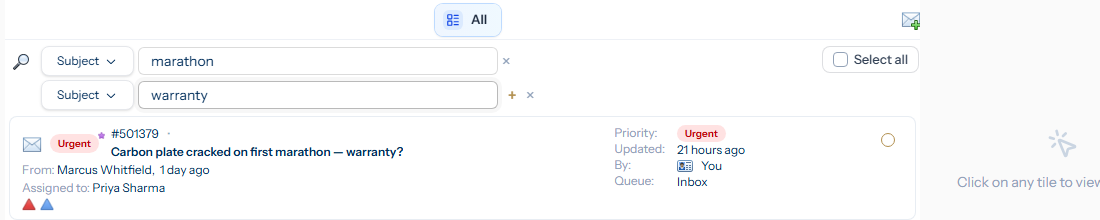
The example above uses two Subject filters, so the result is “subject contains marathon OR subject contains warranty” — tickets matching either word would be shown. Here only one ticket matches in the dev data, but the OR logic is what the search applies under the hood.
Search scope
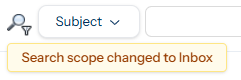
By default, search runs across the Active set — every open ticket in the system — regardless of which perspective you are currently viewing. That keeps a search anchored to live work rather than to whichever view you happen to have open. The three scope options are cycled by clicking the scope button (magnifier icon) on the left of the search bar:
- Active (the default) — search every open ticket in the system (excludes on-hold and closed). This is the “normal” setting: most of the time you are looking for a current piece of work and do not care which queue or perspective it is in. Active is itself a built-in perspective; the search just borrows its filter.
- All — search every ticket you have permission to see, including closed and on-hold ones. Use this when the ticket might be closed (a question about a past resolution, an audit lookup).
- <current perspective> — search only inside the perspective you are currently viewing (the button shows that perspective’s name). This is the more advanced case: usually a perspective is already a filtered view, and adding a search inside it narrows it further. Useful when you have a custom perspective for a project or queue and want to find one ticket inside it.
Each click of the scope button cycles to the next option and shows a brief toast confirming which scope is now active. The choice is remembered between sessions.
Live updates
Search runs as you type. There is no Search button; the list filters in place shortly after you stop typing. Counts in the perspectives panel do not change — they reflect the unfiltered perspective — but the list itself shows only matching tickets.
Saving a search
The search bar is for ad-hoc, one-off queries; clearing the filters or moving away from the page discards them. If you find yourself running the same combination every day, recreate it as a custom perspective instead — perspectives are saved filter sets with sort order and additional rules.