Understanding the ticket browser
The ticket browser is the main staff view in Tickiti. It has a perspectives and watchlists panel on the left, a search bar across the top, and the ticket list — one card per ticket — down the middle. This article walks through what each part of a card shows you, using Sole Provider Sales — our running-equipment example — for the data.
Whichever perspective is active — For my attention in the screenshot below — decides which tickets appear in the list and the order they are sorted in.
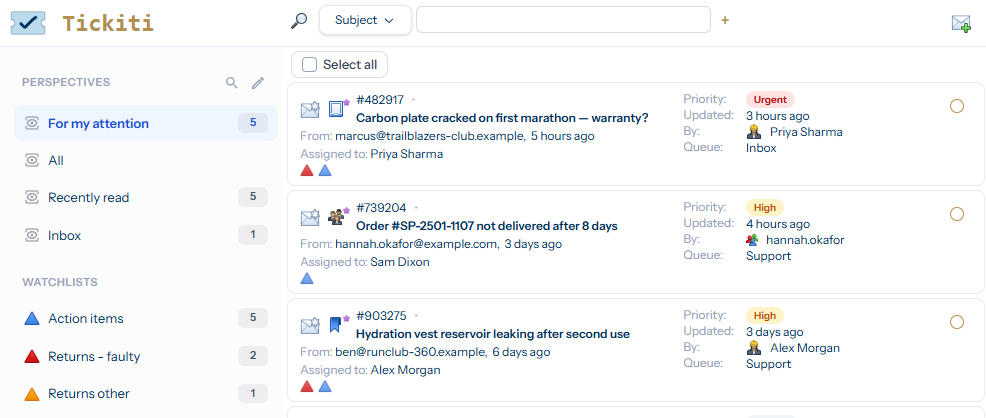
Anatomy of a card
Each card condenses a lot of information about a ticket into a single glance. Here is one card up close:

From left to right and top to bottom:
- Activity glyphs — small icons that show the ticket’s read/unread state, whether it is locked by another user, and what (if anything) is pulling it into your attention — assigned to you, retained, has unacknowledged tags for you, unread on a ticket you participate on, or sat in an inbox you manage. Watchlist membership appears alongside as coloured chips rather than a single glyph.
- Priority badge — coloured chip (Urgent red, High amber, Normal grey, Low faint).
- Number and subject — the ticket number (
#312663) followed by the customer subject line. - From and age — who raised the ticket and how long ago it was last updated.
- Assigned to — the staff member responsible right now (or Unassigned).
- Right-side meta — a compact summary repeating Priority, Updated, By (last responder — You, the customer name, or a staff colleague), and Queue.
- Selection circle on the far right — tick this to select the ticket for a bulk action (merge, delete, set priority, etc.).
Clicking versus selecting
Clicking anywhere on a card (other than the selection circle, search box, or other controls) opens the ticket. Ticking the circle selects it for a multi-ticket action without opening it. You can select several tickets at once and act on them as a batch.
Sorting and counts
Each perspective decides its own sort order — For my attention sorts by attention score, then priority, then last-updated. The count badge next to each perspective name in the left panel is the number of tickets that currently match that perspective.
The information panel
When no ticket is selected, the right-hand panel describes the list you are looking at — the active perspective or watchlist — and holds the actions that apply to the whole list:
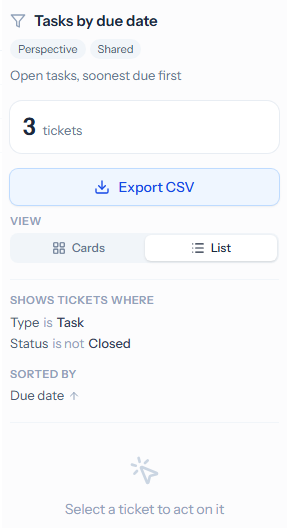
- Name — click it to open the perspective or watchlist in Settings, where you can change it if it is yours to change.
- Chips — whether it is a perspective or a watchlist, whether it is shared or personal (and whose), and Built-in for the perspectives Tickiti provides. The description follows, if there is one.
- Count — how many tickets are in the list. While a search is active, it counts the tickets matching the search.
- Export CSV — downloads the list as it stands, search included, as a spreadsheet: ticket number, subject, status, priority, queue, assignee, who raised it, created and updated times, on-hold date, watchlists and a link to each ticket. An export holds up to 20,000 tickets.
- View — switches between cards and the denser one-line list. The choice is remembered for that perspective in your browser tab and never changes the perspective itself; pick the perspective’s own mode to go back to it.
- Shows tickets where and Sorted by — the perspective’s conditions and sort order, so you can see why a ticket is, or is not, in the list. Yes/no conditions show a tick or a cross.
Select a ticket and the panel switches to that ticket’s details and actions.
Tasks and the bell
Lists can hold tasks as well as tickets. A bell in front of a task means it has come due, or a reminder on it has gone off, and you have not opened it since. Opening the task clears the bell.
What if a ticket I expect is missing?
- Switch to the All perspective to confirm the ticket exists at all.
- Check the search bar at the top of the list — an active filter narrows what you see.
- Confirm you have access to the ticket’s queue — perspectives only show tickets in queues you can view.