


Participants
Every ticket has a list of participants — the people kept in the loop on it. Think of participants as the cc list for the ticket: whenever a reply is posted, everyone on the list is notified by email. If you want a colleague to follow the conversation, add their email address as a participant and they will be copied in from then on.
The screenshots below use Sole Provider Sales, an example running-shoe retailer. The page you see will look similar.
Seeing who is on a ticket
The Participants button sits at the top of the ticket and shows how many people are on the list. Click it to open a panel listing each participant by email address.
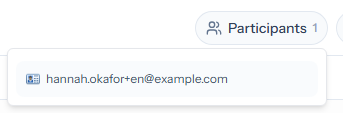
You can only change participants while replying
Adding and removing participants is part of replying to the ticket. The controls to change the list appear once you have a reply open — when you are only reading the ticket, the panel shows who is on it but the list cannot be changed. If you open the ticket from a notification email without signing in, you still see the participant count; open a reply to change the list.

Adding a participant
Click Reply to open a reply, then open the participants panel and click the add-participant icon in its corner:
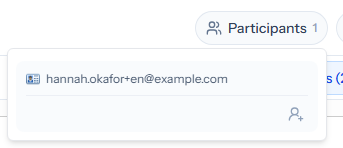
A box opens where you enter the email address of the person to add:
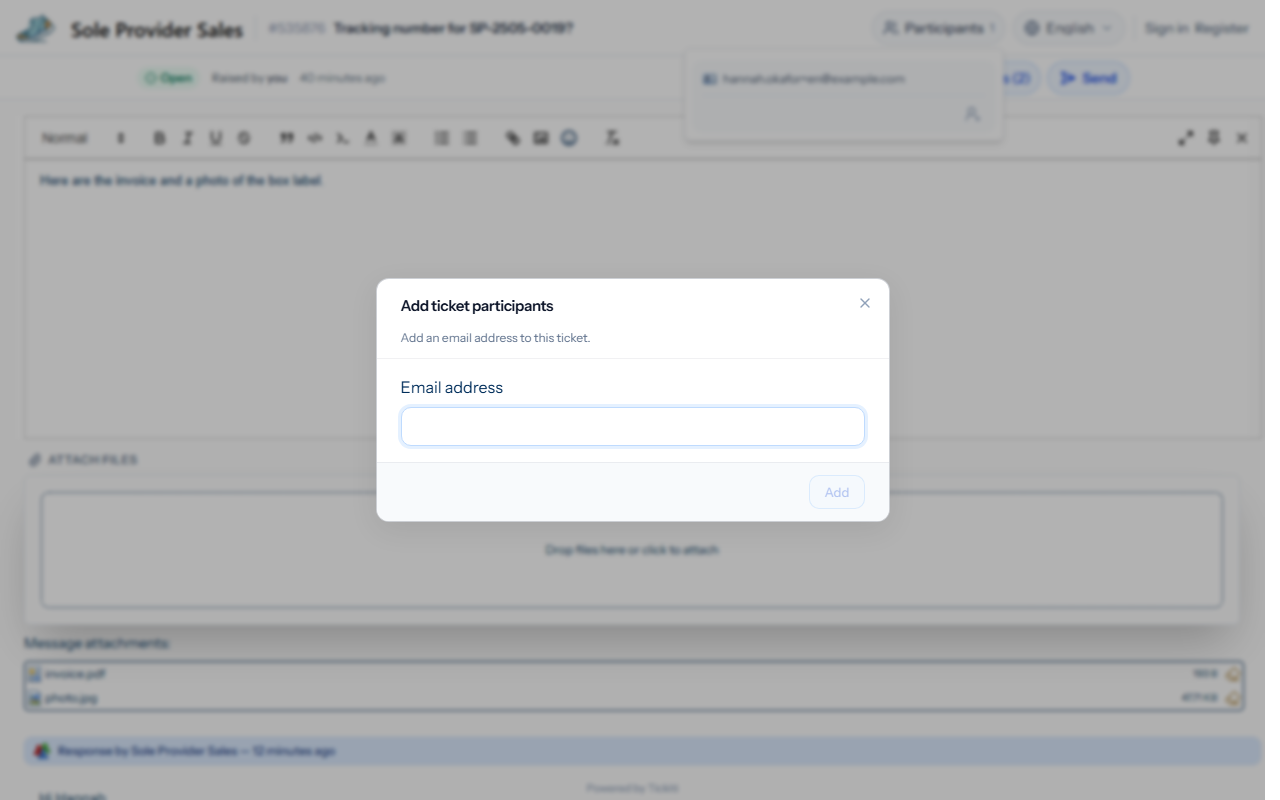
Type the address and confirm. The new participant joins the list straight away and is notified when you post your response.
Removing a participant
With a reply open, open the participants panel and click the trash can icon next to the person’s email address. They drop off the list, stop receiving notifications, and can no longer view the ticket. Removing someone does not delete anything already posted — earlier messages stay in the conversation.