Participants
Every ticket has a list of participants — the people copied on it. Think of participants as the cc list for the ticket: when a public response is posted, everyone on the list is notified by email. A participant can be a colleague on your team or an external email address — anyone who should follow the conversation.
Where participants live
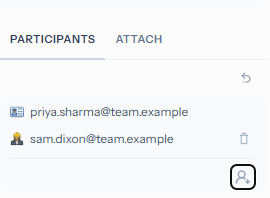
You manage participants from the Participants tab at the bottom of the response composer’s side panel. Open a ticket, click Reply to open the composer, then switch to the Participants tab to see who is currently on the list. Each participant is shown by name or email address.
Adding a participant
On the Participants tab, click the add-participant icon at the bottom. A dialog opens where you can add an internal colleague or type an external email address. The new participant joins the list straight away and is notified the next time a public response is posted.
Adding an external email address gives that person access to the ticket in the customer portal, so they can read the conversation and reply themselves. Use a public response to make sure they can see what you write.
Removing a participant
Click the trash can icon next to a participant to remove them. They drop off the list and stop receiving notifications. Removing an external participant also revokes their access to view the ticket in the customer portal. Removing someone does not delete anything already posted — earlier messages stay in the conversation.
Who sees what
Only public responses notify participants and appear on the ticket in the customer portal. Staff notes stay inside your team and are never shown to external participants. See Response types for the full breakdown, and Responding to tickets for the composer itself.