System health
The Health page shows whether Tickiti’s background work is keeping up, and watches the server’s disks and your sites’ security certificates. It is mainly for self-hosted installations. It is at Supervisor → Health; the Supervisor menu is shown only to the superuser account. A site hosted by Tickiti has no superuser account: Tickiti watches the system for you, and its problems go to Tickiti’s own support team.
System health
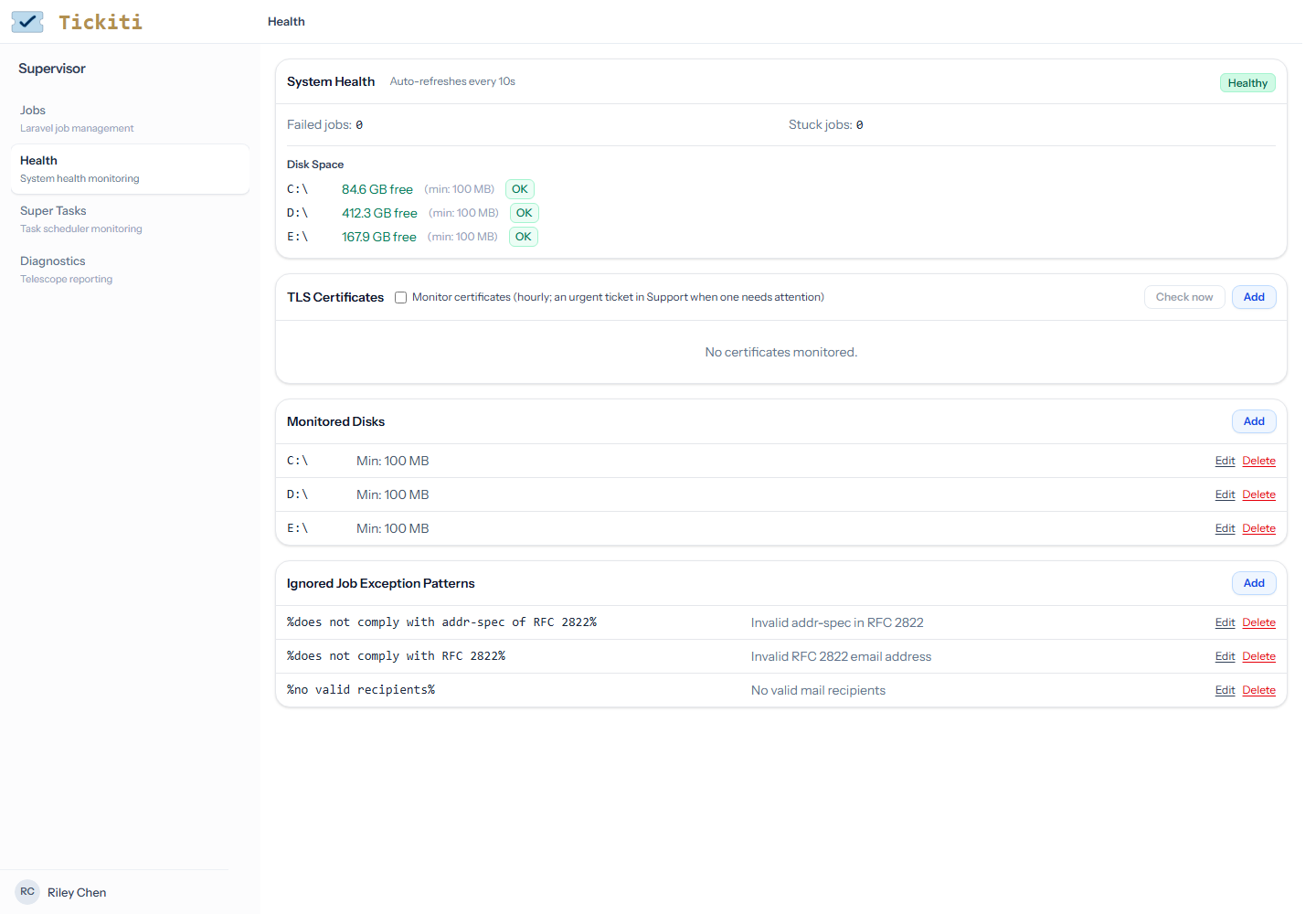
The card at the top refreshes every 10 seconds. It reads Healthy unless one of these is true, when it reads Unhealthy:
- Failed jobs — a background job, such as sending an email, has failed for good, and no ignored pattern (below) covers its error.
- Stuck jobs — a job has waited more than 10 minutes to run. Usually the queue worker has stopped.
- Disk space — a monitored disk has less free space than its minimum, or cannot be read. A disk below its warning level shows WARN but does not make the system unhealthy.
- TLS certificates — while certificate monitoring is on, a monitored certificate is failing (below).
- Alerts to confirm — a serious alert, such as a rate limit that may be an attack, that nobody has confirmed yet.
Every 5 minutes Tickiti checks the same things and raises an Alert ticket for failed jobs, stuck jobs and disks below their minimum (a critical alert), so the System alerts team hears about them without watching this page. Supervisor → Jobs lists the failed jobs, with their errors; select some to Retry or Delete them.
Alerts to confirm
A serious alert is listed here, with a link to its Alert ticket, and keeps the system unhealthy until someone has looked into it and clicked Confirm and reset.
TLS certificates
Tickiti can watch the security certificates of your sites, such as your website and your support address, and tell you before one expires. Tick Monitor certificates to turn it on; each certificate is then checked every hour.
Click Add and enter:
- Host name — the site, such as
www.example.com. - Port — 443 for a website.
- Connect to (optional) — a different address to connect to, for a site behind a load balancer or not yet in DNS. The certificate must still name the host.
- Warn (days) — from this many days before expiry the certificate shows WARN and an Alert ticket is raised. 21 to start with.
- Min (days) — from this many days before expiry the certificate counts as failed and the system as unhealthy. 7 to start with; it cannot be more than Warn.
Saving checks the certificate straight away. Each row shows its state (OK, WARN, FAIL, EXPIRED or PENDING until its first check), when it expires, who issued it and when it was last checked. Check now checks them all at once.
A certificate also fails when two checks in a row cannot read it or find it does not name its host, or when it has not been checked for 3 hours. Problems are reported on one Alert ticket, TLS certificate problem, which is critical when a certificate has expired or expires within a day. Where the server renews its certificates with win-acme and Tickiti is set up to read its renewal files, failed renewals are listed and reported too.
Monitored disks
Each disk has a Root path, such as C:\, a Min free (MB) below which the system is unhealthy, and an optional Warn free (MB) for an earlier warning. On a site hosted by Tickiti the server’s disks are monitored for you, and this section is not shown.
Ignored job exception patterns
Some failures need no action, such as an email that could not be sent because the address was not valid. A pattern keeps matching failed jobs out of the failed-jobs count, and those jobs are cleared away automatically. Patterns use SQL LIKE syntax, where % stands for any text: %no valid recipients% matches any error containing those words. Add a Description to say why it is safe to ignore. Keep patterns narrow, as a matching failure is never reported.
Checking health from outside
GET /health on your Tickiti address returns the same verdict as JSON, with no sign-in, for an uptime monitor: system_healthy is true or false, alongside the counts and disk figures. It gives no error messages or other detail. To manage these settings through the API, see the Supervisor API.