Axial: turning it on and who sees it
The General page of the Axial menu turns Axial on and decides who sees it. Open it from your account menu: Axial → General. For the rest of the Axial menu, see Axial for administrators.
Axial runs only when both Turn on AI and Turn on Axial are ticked and an API key is in place.
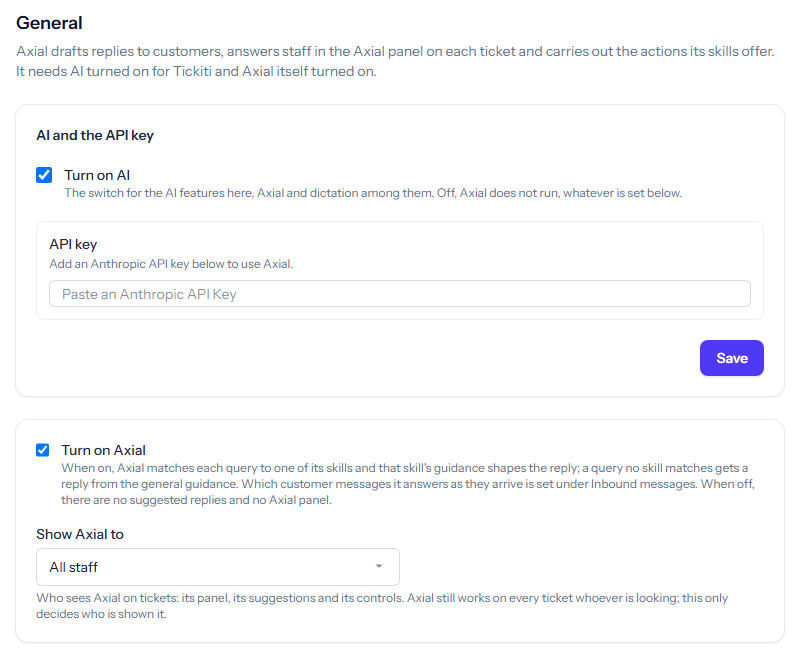
In this example no key has been added yet, so the line under API key asks for one, and Axial will not run until a key is saved.
AI and the API key
Turn on AI is the switch for every AI feature in Tickiti, Axial and dictation among them. With it off, Axial does not run, whatever else is set.
Axial uses an Anthropic API key. The line under API key says which key is in effect:
- This Tickiti uses its own key: your key is set, and AI usage is billed to your Anthropic account.
- Using a trial plan key subject to fair use policy: on a trial, a shared key lets you try Axial straight away. A trial has an allowance of Axial runs; once it is used, Axial says so and asks for a key of your own.
- Add an Anthropic API key below to use Axial: add your key to run Axial on your own account.
To add or change the key, paste it into the field and click Save. Tickiti asks for your sign-in password before it saves either of these settings, because the key decides whose account every model call is billed to. The key is stored encrypted and is never shown again. Leave the field blank to keep the current key, or tick Clear this key and use the shared plan key to remove it.
When no key is in effect at all, the page says No API key configured. You can still save settings, but Axial does not run until a key is in place.
Leaving the demo turns AI and Axial off again unless you have added a key of your own, and puts Show Axial to back to its starting setting. Turn them on here again when you are ready.
Turning on Axial
Turn on Axial saves as soon as you tick or untick it, with no password. When it is on, Axial matches each query to one of its skills, and that skill’s guidance shapes the reply; a query no skill matches gets a reply from the general guidance. When it is off, there are no suggested replies and no Axial panel.
Which customer messages Axial works on as they arrive is set on Inbound messages.
Who sees Axial
Show Axial to decides who is shown Axial on tickets: its panel, its suggestions and its controls. It saves when you change it.
- System administrators (on a self-hosted installation)
- Administrators and above
- All staff
Axial still works on every ticket, whoever is looking; this setting only decides who is shown it. It also decides who reaches the Axial menu: an administrator who is not shown Axial does not see the menu entry.
Each member of staff also has their own Axial access, set on their account in User management: No access, View, Work or Manage. A person sees Axial only when both settings allow it. What each level allows is described in Axial for staff.