Ignored subjects and excluded emails
Two lists under Mail & Templates change how Tickiti treats some of the mail that reaches your mailboxes. Subjects marks automatic replies, such as out-of-office messages and bounces, so they are kept without anyone being notified. Excluded emails keeps addresses you name off your tickets. Neither list stops a message reaching its ticket. Both are for administrators.
Ignored subjects
Open Mail & Templates → Subjects. The list comes with the usual automatic-reply phrases in several languages, such as (out of office), (automatic reply) and (delivery status notification).
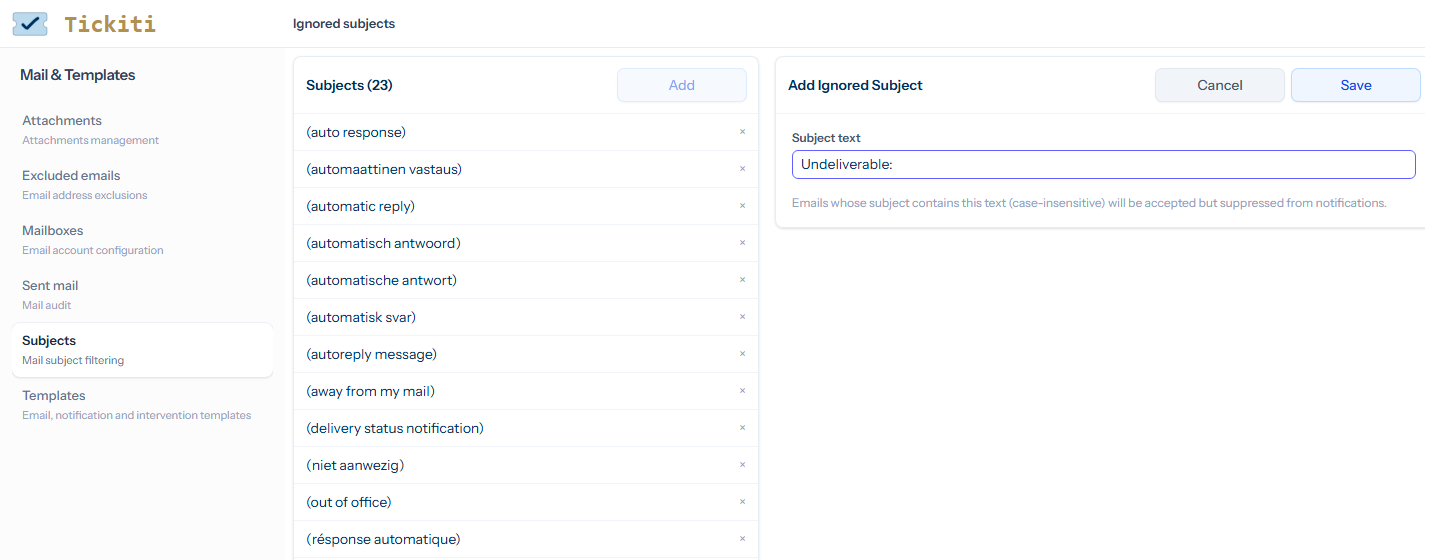
A message matches when its subject contains an entry anywhere, ignoring case: out of office re: matches Out of Office RE: Your order. Tickiti treats a matching message like this:
- It is added to its ticket, or opens a new one, as usual, so you can still see it.
- Nobody is notified: no staff notification and no automatic acknowledgement to the sender, so two automatic responders cannot answer each other for ever.
- It does not reopen a ticket that is on hold or closed. On an open ticket it changes nothing.
- Staff see an Out of office label on it, and the ticket’s message filters show how many there are, with a box to show or hide them.
- It does not count as a new message to automations that wait for a ticket to go quiet, and it gets no absence auto-reply.
- Axial leaves it alone while Skip out-of-office replies is ticked in Axial’s inbound settings (the default).
Mail that announces itself as automatic in its headers is treated the same way, whatever its subject.
To add an entry, click Add, type the text and click Save. Each entry must be different from the others. Click the × beside an entry to delete it. Keep entries specific: a short word such as order would also match your customers’ real messages, and nobody would be told about them.
Excluded emails
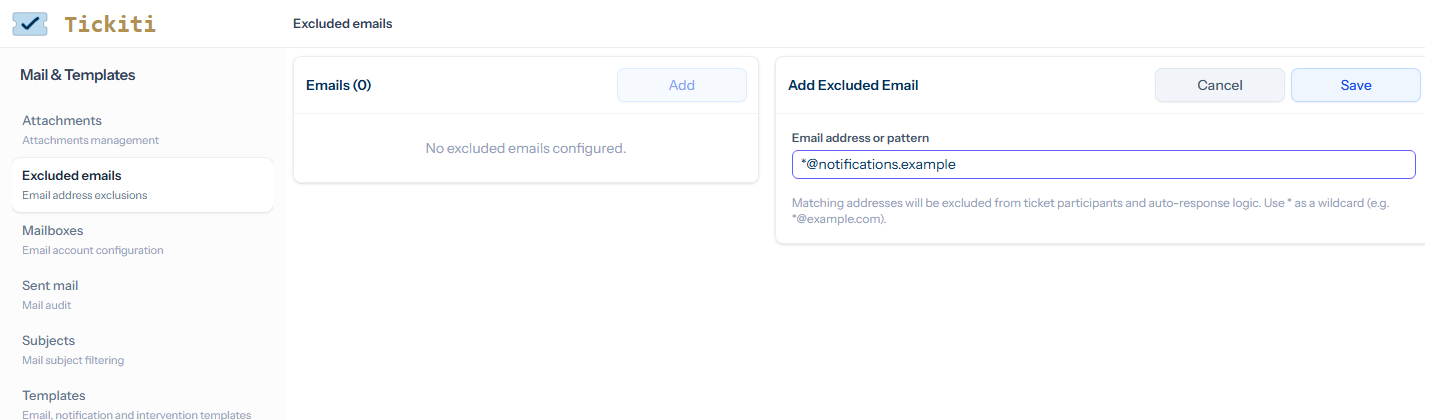
Open Mail & Templates → Excluded emails. Each entry is an address, or a pattern in which * stands for any text: *@notifications.example matches every address at that domain. Matching ignores case.
When a message arrives from a member of staff or from one of your mailboxes, Tickiti makes every address in its To and Cc lines a participant of the ticket, so they receive its updates. When it comes from a customer, whether it opens a ticket or follows one up, Tickiti adds only the people the customer could add on the ticket themselves:
- an address at exactly the same email domain as the sender, unless that domain belongs to a free email service such as gmail.com or outlook.com, where anyone can have an address;
- where Tickiti shares its database with your CRM, an address on the same customer account as the sender: a contact on one of the sender’s accounts, or an address at a domain the account has claimed.
A member of staff, one of your mailboxes or Tickiti’s own system address is never added from a customer’s message. The addresses that were not added are listed for staff on the message, after Not added as participants, and you can add any of them yourself (see Managing participants). A message whose sender’s address failed the receiving mail server’s authentication check (DMARC) is treated as a customer’s, whoever it appears to be from.
Whoever sends the message, an excluded address is not added. Use this for your own shared addresses, a mailing list or a system that copies itself into mail. The mailbox’s own address is never added, so it does not need an entry.
A message from an excluded address still reaches its ticket. Tickiti also skips its check for this sender already has an open ticket, which would otherwise ask staff to review a possible duplicate.
Add and delete entries as for ignored subjects. An entry affects mail that arrives after it is saved; participants already on a ticket stay until someone removes them (see Managing participants).
Related
- Mailbox setup — the mailboxes these lists apply to.
- Mail API — read and change both lists through the API.