Axial attachment rules
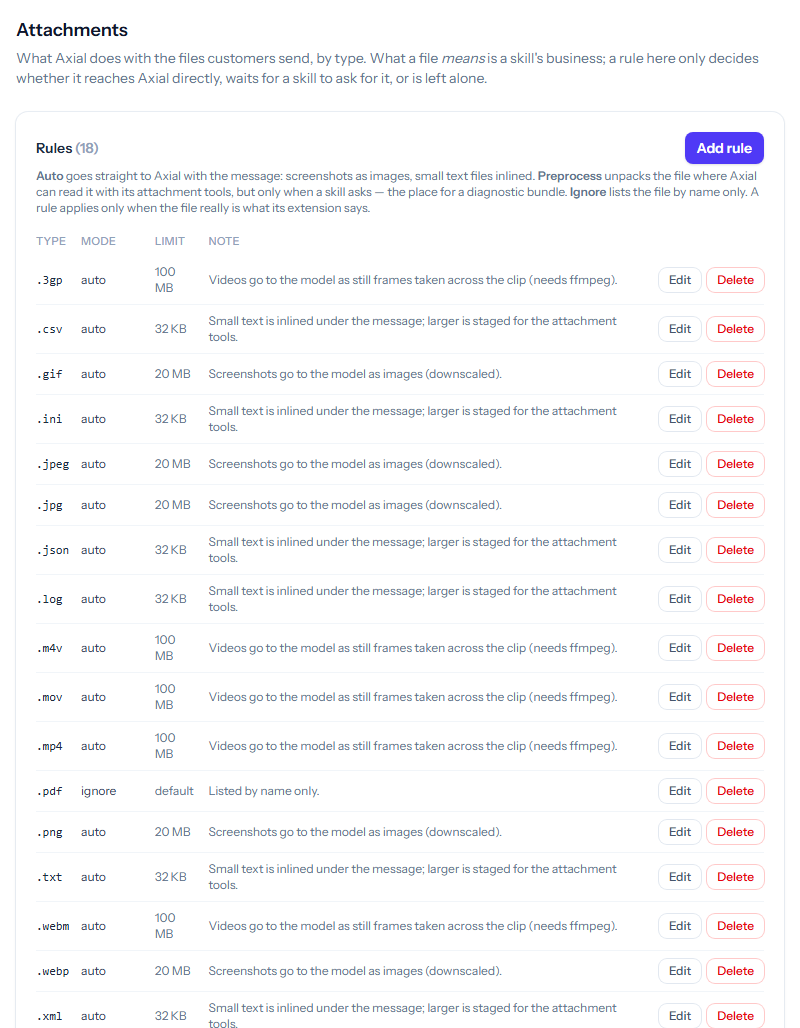
Customers often explain a problem with a file: a screenshot, a photo, a log, a short video. The Attachments page of the Axial menu decides, by file type, what Axial does with the files customers send. Open it from your account menu: Axial → Attachments.
These rules are separate from the attachment rules under Mail & Templates → Attachments, which decide which files Tickiti accepts at all. A rule here only decides what Axial is given.
The three modes
- Auto: the file goes to Axial with the customer’s message. Images are sent as images, small text files are put under the message, and videos are sent as still frames taken across the clip, where the server can take them.
- Preprocess: the file is unpacked (an archive) or copied where Axial’s attachment tools can read it, and Axial is told it is there. Nothing from it reaches Axial until a skill asks for it, which suits large bundles such as diagnostic archives.
- Ignore: Axial is told the file’s name and nothing more.
A file type with no rule, or with a disabled rule, is listed by name only. A rule applies only when the file really is what its extension says: a file named .png that is not an image is listed by name only. Rules work on images (png, jpg, jpeg, gif, webp, bmp), zip archives, videos and plain-text files; any other kind of file is listed by name only, whatever its rule says.
Adding or changing a rule
Click Add rule, or Edit beside a rule:
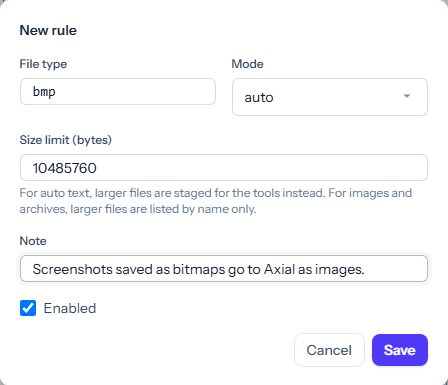
- File type: the extension, without the dot. Each type has one rule.
- Mode: auto, preprocess or ignore.
- Size limit (bytes): leave it blank for the standard limit. A text file over the limit on auto is put where the attachment tools can read it instead; an image or archive over the limit is listed by name only.
- Note: why the rule exists, shown in the list.
- Enabled: untick it to set the rule aside without deleting it.
Click Save. Delete removes a rule after you confirm, and that file type is then listed by name only.
Good to know
- Only the newest images on a ticket go to the model; older ones are named in their place. The number is set on Models & limits.
- What a file means is a skill’s business. To have Axial read a preprocessed bundle, say in the skill’s guidance which files to read and what to look for.