Axial skills
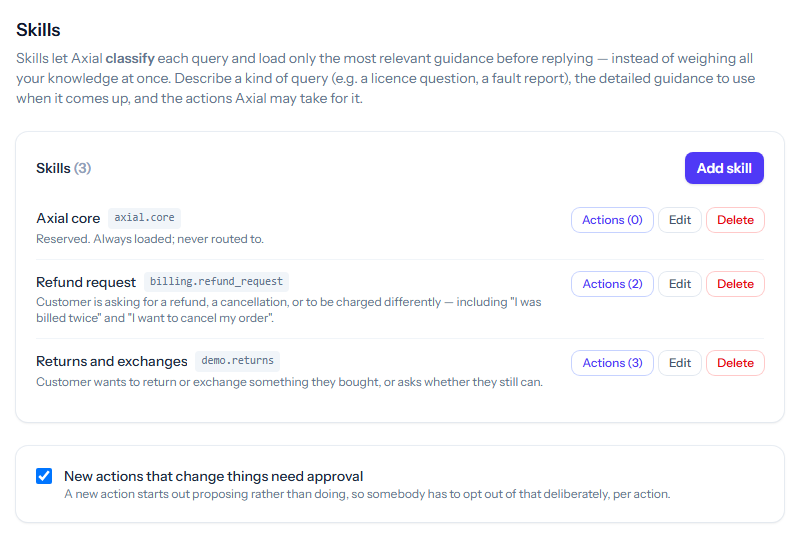
A skill tells Axial how to handle one kind of query: a refund request, a return, a delivery problem. Axial reads every customer message, chooses the skill that fits, and then works from that skill’s guidance and actions only. A skill that is not chosen costs nothing and cannot get in the way.
Open the list from your account menu: Axial → Skills. The Axial menu is for administrators (system administrators, on a self-hosted installation).
How Axial chooses a skill
For each customer message, Axial reads only the key, the When to use it description and the triggers of every enabled skill, and picks the one that fits. A message that no skill fits gets a reply from Axial’s general guidance. Staff can also choose a skill themselves in the Axial panel by typing /.
Axial core (axial.core) is reserved. It holds the rules Axial follows on every ticket, is loaded before any other skill and is never chosen by routing. You can edit its guidance, but not its key, and it cannot be deleted.
Adding or editing a skill
Click Add skill, or Edit beside a skill. Click Save skill when you are done; a new skill must be saved before it can have actions or questions.
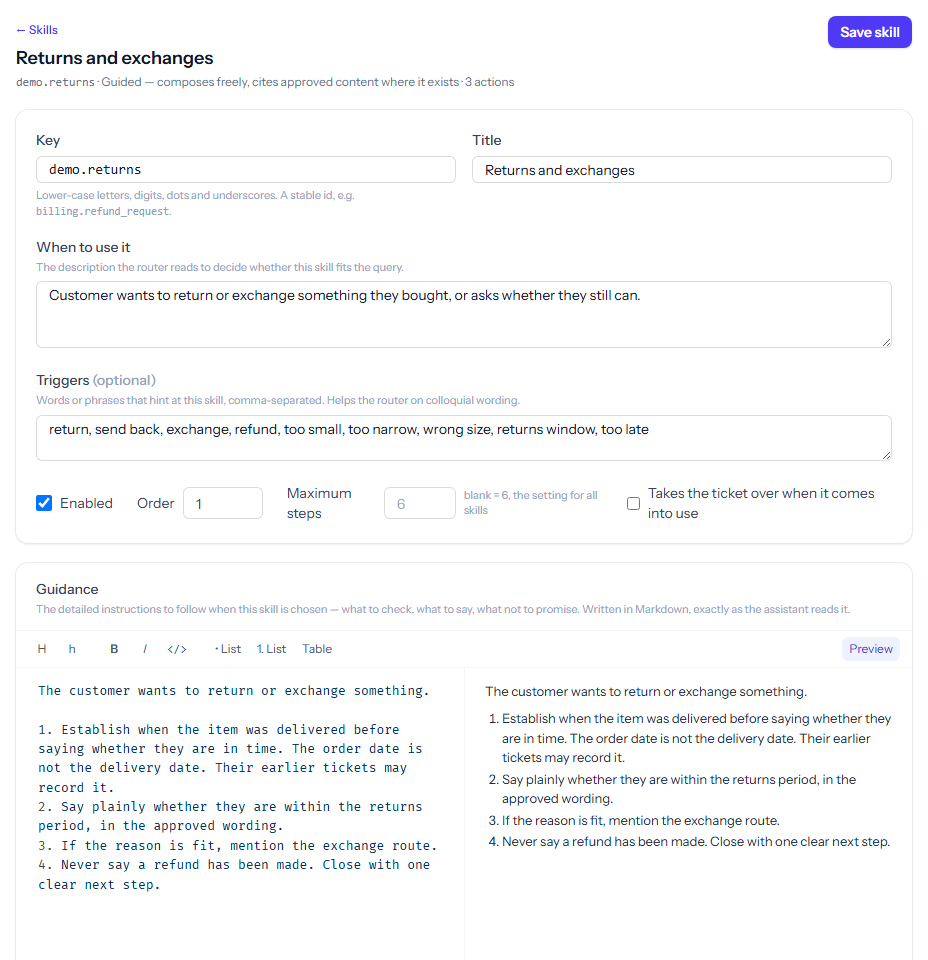
- Key: a stable id in lower-case letters, digits, dots and underscores, such as
billing.refund_request. - Title: the name staff see.
- When to use it: the description Axial reads to decide whether this skill fits. Describe the customer’s situation, not your process.
- Triggers (optional): words and phrases customers use for this, comma-separated, such as send back, wrong size, too late.
- Enabled: a disabled skill stays in the list but is never chosen. Order sets its place in the list.
- Maximum steps: how many rounds of lookups a run of this skill may take before it must write its reply. Leave it blank to use the setting for all skills on Models & limits. On a site hosted by Tickiti, it cannot be more than that setting, which Tickiti sets.
- Takes the ticket over when it comes into use: when a later customer message on a ticket is routed to this skill, it becomes the ticket’s primary skill, and the one that was primary stays in use beside it.
- Guidance: what Axial should check, say and never promise when this skill is chosen. It is Markdown, exactly as Axial reads it, with a preview beside it. Short numbered steps work well.
Where your installation has an Axial agent, In-depth investigation says what the agent should do when staff ask for an in-depth investigation of a ticket this skill handles. Leave it empty to offer none.
Actions
An action is a tool Axial may call while the skill is in use: to look something up, or to change something. Click Actions beside a skill in the list, or scroll to the Actions card in its editor.
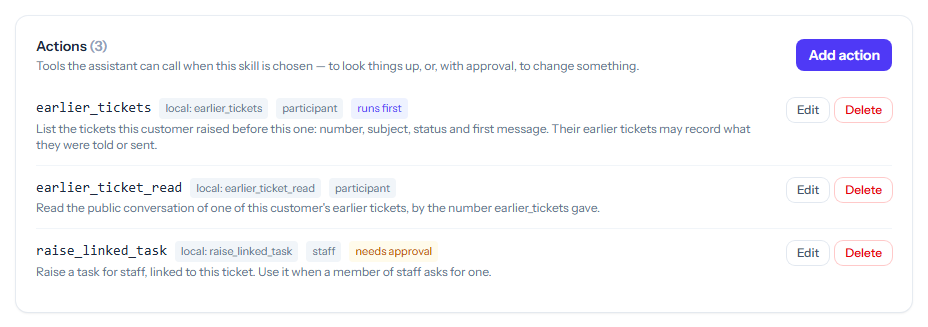
Each row shows how the action runs, who it is offered for, and these badges:
- needs approval: Axial proposes the action and waits for a person.
- runs first: run before Axial’s first turn, so its result is there from the start.
- any staff instruction: offered whenever a member of staff asks Axial to do something, whatever skill the ticket is using.
- disabled: never offered.
Click Add action or Edit to open the action editor:
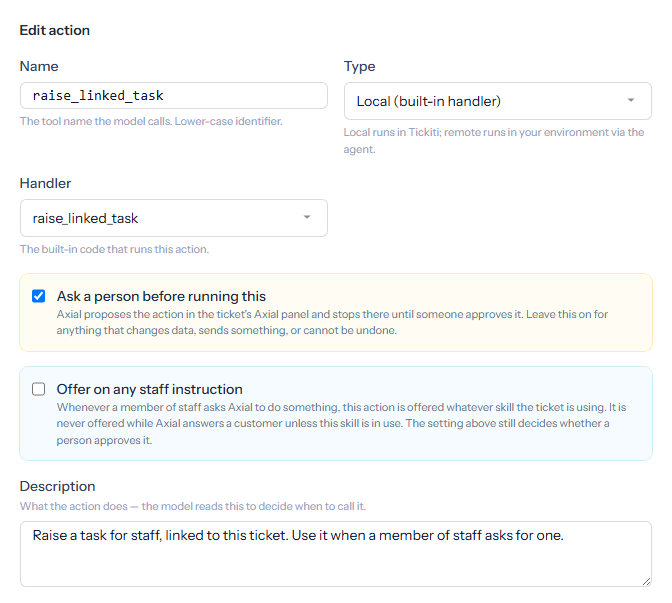
- Name: the tool name Axial calls, as a lower-case identifier.
- Type: Local runs one of Tickiti’s built-in handlers, chosen under Handler. Remote runs in your own environment through the Axial agent, which resolves the handler name on its side; Timeout is how long Tickiti waits for it (8,000 ms if left blank). On a site hosted by Tickiti, remote actions are set up by Tickiti: an administrator cannot add or change one.
- Ask a person before running this: Axial proposes the action as a card in the ticket’s Axial panel and stops until someone approves it. Leave this on for anything that changes data, sends something or cannot be undone.
- Offer on any staff instruction: see the badge above. While Axial answers a customer, the action is still offered only when this skill is in use.
- Description: what the action does. Axial reads it to decide when to call it.
- Parameters: the input Axial must give, as JSON Schema. Use
{"type":"object","properties":{}}for none. - Permission: participant is offered on every run, including a reply to a customer’s message; staff only when a member of staff is working with Axial; system only on runs Tickiti starts itself, such as checking on long-running work.
With New actions that change things need approval ticked on the Skills page, every new action starts with Ask a person before running this on, so turning it off is a deliberate choice for each action.
Questions for staff
A skill can hold questions Axial may put to a member of staff when the answer would change its reply and no lookup can settle it. Each question has a name, the question itself and its options; write {value} where Axial fills something in. An option can ask staff to type something, and can run one or more approval-needing actions when chosen. Axial shows the question as a card in the Axial panel.
Deleting a skill
Click Delete and confirm. This cannot be undone, and the skill’s actions and questions go with it. To stop a skill being used for a while, untick Enabled instead.
Other ways skills change
- Axial can draft a change to a skill while working on a ticket. Administrators with Manage access to Axial (system administrators, on a self-hosted installation) see it as a card in the Axial panel, and nothing changes until someone clicks Apply skill change.
- Skills can be read and changed through the API and the MCP server’s Axial tools.
- Skills can be kept in a git repository instead of in Tickiti. See Axial skill store. On a site hosted by Tickiti, Tickiti runs the skill store; while it keeps the skills in a repository, they are changed there, not on these pages.